Buying a new PC game is exciting, but discovering that it runs poorly on your computer can quickly ruin the experience. A game might look perfect in screenshots and videos, yet struggle with low frame rates, constant stuttering, or unexpected crashes on your system. In some cases, it may not even launch. The good news is that you do not need to be a computer expert to check whether your PC can run a game. By understanding system requirements, checking your hardware specifications, and comparing the right components, you can make a much more informed decision before spending your money. This guide explains how to check if your PC can run a game, which specifications matter most, how to use compatibility tools, and what to consider before purchasing a digital game. Whether you have a budget laptop, an older desktop, or a modern gaming PC, these steps can help you avoid unnecessary disappointment.
Understand the Minimum and Recommended System Requirements
The first step is to find the game’s official system requirements. These specifications describe the hardware and software needed to run the game under certain conditions. Most PC games list minimum and recommended requirements on their official websites or digital storefront pages. Minimum system requirements describe the baseline hardware needed to run a game under the developer’s stated conditions. Meeting these requirements does not necessarily mean the game will deliver smooth performance or high graphical quality. Recommended system requirements describe a more capable configuration intended to provide a better gameplay experience. However, the exact performance you receive still depends on the game, resolution, graphics settings, and your complete system configuration.
For example, a game might require 8 GB of RAM at minimum and recommend 16 GB. If your computer has 8 GB, it may meet the memory requirement, but that alone does not guarantee that the game will run properly. Always check the complete list of requirements instead of focusing on just one specification. A powerful graphics card cannot compensate for every limitation in an older processor, insufficient memory, or an unsupported operating system.
Check Your PC Specifications in Windows
Before comparing your computer with a game’s requirements, you need to know which hardware your PC has. Windows provides built-in tools that make this process straightforward. Microsoft explains how to find your processor, installed memory, Windows version, system type, and storage information through Windows Settings.
Here is how to check the Most Important Details
Open your PC specifications
Press Windows + I to open Settings. Select System, then About. Look under Device specifications to find your processor, installed RAM, and system type. Under Windows specifications, check your Windows edition and version.
Check your graphics card
Press Ctrl + Shift + Esc to open the Task Manager. Select Performance, then GPU. If your computer has multiple graphics processors, check each one. Note the GPU model and the dedicated graphics memory shown, if available. You can also press Windows + R, type dxdiag and press Enter to open the DirectX Diagnostic Tool. Its Display tabs provide additional information about your graphics hardware and drivers.
Check available storage
Open Settings, select System, and then Storage. Check how much free space is available on the drive where you plan to install the game. If you have multiple drives, make sure you check the correct one. Write down these details before moving on. Knowing your actual hardware makes it much easier to determine whether a game is compatible with your PC.
Compare Your Processor (CPU) With the Game Requirements
The central processing unit, or CPU, handles many of the calculations needed to run a game. It can manage game logic, artificial intelligence, physics, and other background tasks. When checking whether your PC can run a game, compare your processor model with the CPU listed in the game’s minimum and recommended requirements. For example, suppose a game lists an Intel Core i5-8400 as its minimum processor. Your computer has an Intel Core i3 from an older generation. You should not assume that your processor will be sufficient simply because both names contain Intel Core.
Processor generations, core counts, architecture, and performance all matter. The same applies when comparing AMD Ryzen processors with Intel Core models. Matching the name or clock speed alone is not enough to establish equivalent performance. A newer processor is often faster than an older model, but this is not a universal rule. Different processor families have different performance characteristics, so check independent benchmarks when the comparison is unclear. Also, pay attention to the game’s exact CPU requirement. Some games depend heavily on processor performance, particularly large open-world games, strategy titles, and simulations with many characters or complex systems.
If your CPU falls below the minimum requirement, the game may still launch in some circumstances, but you could experience low frame rates, stuttering, or other performance problems. A processor that meets the recommended requirement generally gives you a stronger starting point, although it cannot guarantee a particular frame rate.
Check Your Graphics Card (GPU)
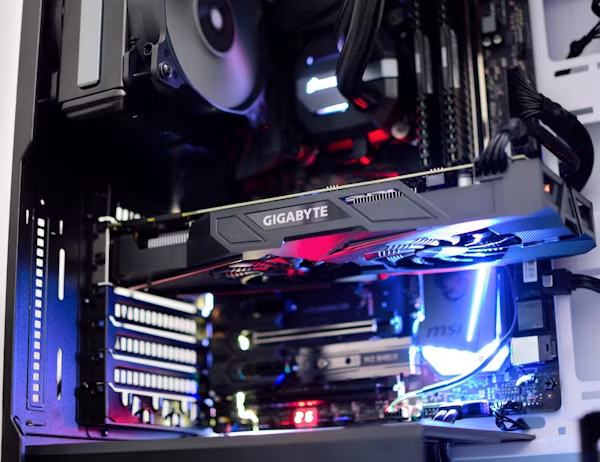
The graphics processing unit, commonly called the GPU, is one of the most important components for modern PC gaming. It renders images, processes visual effects, and helps determine how smoothly a game runs at a particular resolution and graphics quality. A game may require a dedicated graphics card, while another may support integrated graphics built into the processor. You need to check the specific requirements rather than assume that every computer can run every game. For example, a game might list an NVIDIA GeForce GTX 1060 as its minimum GPU. If your computer uses Intel integrated graphics, you should not assume that it is equivalent to that dedicated card. Compare the actual GPU model and relevant benchmarks before buying.
Graphics memory, or VRAM, also matters. It stores graphical data such as textures and other resources used during gameplay. A game that requires 6 GB of VRAM may encounter problems on a graphics card with less memory, particularly when using high-resolution textures. However, VRAM capacity is not the only measure of graphics performance. Two graphics cards with the same amount of VRAM can deliver very different results because their processing power and architecture differ.
Resolution matters as well. Running a game at 1080p generally requires less graphics processing than running it at 1440p or 4K with otherwise similar settings. Ray tracing and high-resolution textures can add further demands. Always compare the complete GPU model, VRAM requirements, and any specific graphics features listed by the developer. This will give you a more reliable picture of whether your PC can run the game comfortably.
Check RAM, Storage, and Operating System Compatibility
A compatible CPU and GPU are important, but they are not the only requirements that determine whether a PC game will work. RAM (system memory) helps Windows and games keep active data readily available. If a game requires 16 GB of RAM and your PC has only 8 GB, you may experience performance issues or be unable to meet the published requirements. Other applications running in the background can increase memory pressure. Storage space determines whether you can install the game and its required files. A game may require 80 GB or more, and updates can increase its total storage needs. Make sure the selected drive has enough free space for installation and future updates.
Operating system compatibility is equally important. Check whether the game supports your version of Windows and whether it requires a 64-bit operating system. Some games also specify particular versions of DirectX or require additional software components. Certain multiplayer titles may have additional security requirements. For example, some games or their anti-cheat systems require Secure Boot and TPM 2.0 to be supported and enabled. Do not confuse a game’s requirements with Windows’ own minimum requirements. A computer that can run Windows 11 does not automatically have the hardware needed for demanding PC games.
Use Online Tools to Check Whether Your PC Can Run a Game
If you are unfamiliar with computer hardware, online compatibility tools can make the process easier. They help compare your system specifications with the requirements of a specific game. One commonly used option is Can You RUN It. The service provides game requirement information and can analyze supported Windows computers to compare their hardware with a selected game’s requirements. Its website explains how its compatibility analysis works. To use a compatibility checker, select the game you want to play, follow the site’s instructions, and review the results. Depending on the tool, you may need to install a detection component to identify your computer’s hardware. You should still verify the result against the game’s official system requirements. Compatibility tools are useful guides, but their databases may not reflect every recent update, new driver, or special requirement.
A tool may also report that your PC meets the minimum requirements without telling you whether the game will deliver a stable 60 FPS at your preferred settings. Treat the result as a starting point rather than a performance guarantee. If you prefer not to install a detection utility, you can compare your PC specifications with the game’s published requirements manually. This method takes a little longer but gives you control over the information you share with third-party services.
Consider Real-World Performance, Not Just System Requirements
Meeting the minimum system requirements does not necessarily mean a game will run smoothly. Developers publish requirements to describe a baseline configuration, but actual performance depends on several factors. Your preferred resolution is one of the biggest considerations. A PC that runs a game reasonably well at 1080p may struggle at 1440p or 4K. Similarly, switching from high to medium graphics settings can reduce the workload on your GPU. Driver support matters, too. An outdated graphics driver can cause compatibility problems or prevent you from benefiting from performance improvements. Before launching a newly purchased game, check for appropriate drivers from your GPU manufacturer’s official website.
You should also consider cooling and power. If your laptop or desktop overheats, it may reduce performance to control temperatures. On laptops, selecting an appropriate power mode and connecting the charger during demanding gameplay can also affect performance. For demanding games, look for independent benchmarks using hardware similar to yours. These tests can help you estimate frame rates at particular resolutions and graphics settings. Check whether the benchmark measures average FPS, low-percentile performance, or both, because averages alone can hide noticeable stuttering.
Compare Your PC With a Game: A Practical Example
Imagine you want to purchase a demanding PC game, and its published minimum requirements include a particular processor, a dedicated graphics card with 6 GB of VRAM, 16 GB of RAM, and 100 GB of available storage. Your computer has a processor that meets the listed requirement, a graphics card with 4 GB of VRAM, 16 GB of RAM, and 150 GB of free storage.
Here is how you should interpret the comparison:
- Your CPU meets the published requirement, so it passes this initial check.
- Your GPU has less VRAM than specified. This is a warning sign, and you should check the exact GPU model, game requirements, and relevant benchmarks before buying.
- Your computer meets the listed 16 GB memory requirement, although other running applications may affect available memory.
- You have enough free space for the stated 100 GB requirement, but allow for updates and additional files.
- You have not confirmed that the game will run well. You still need to investigate the GPU limitation and verify operating system and other requirements.
This example demonstrates why you should not judge compatibility by checking only one component. A computer can meet most requirements and still have a significant limitation.
When a requirement is unclear, look for official clarification or reliable performance tests. Avoid assuming that a small difference in specifications is always harmless or that one unmet requirement automatically makes a game impossible to run.

Final Checklist Before Buying a PC Game
Before purchasing any PC game, take a few minutes to review your system and the game’s requirements. This simple habit can help you avoid unnecessary spending and compatibility problems.
Use this checklist:
- Find the game’s official minimum and recommended system requirements.
- Check your CPU model and compare it with the listed processor.
- Identify your graphics card and verify its model and VRAM.
- Confirm that your RAM meets the game’s requirements.
- Check available storage space on the intended installation drive.
- Verify Windows compatibility and any required graphics technologies.
- Check whether the game requires Secure Boot, TPM 2.0, or particular anti-cheat components.
- Look for independent benchmarks if you want a specific resolution or frame rate.
- Review the current system requirements in case a major game update has changed them.
- Confirm the correct game edition, supported platform, and purchase terms before paying.
Completing these checks does not guarantee perfect performance, but it gives you a much stronger basis for making a purchase decision.
Conclusion
Checking whether your PC can run a game before buying it is one of the simplest ways to make smarter gaming purchases. Start by finding the game’s official system requirements, then compare them with your processor, graphics card, RAM, storage, and operating system. Remember that meeting the minimum requirements is not the same as achieving smooth performance. Your preferred resolution, graphics settings, drivers, and the game’s optimization can all influence the final experience. Use online compatibility tools as a starting point, and consult reliable benchmarks when you need a more accurate performance estimate. Most importantly, check the full system requirements instead of relying on a single specification. With a little preparation, you can choose PC games that better match your hardware, avoid disappointing purchases, and enjoy a more reliable gaming experience.