Introduction
When a PC game runs slowly, upgrading the hardware can make a noticeable difference. However, choosing the right component is not always straightforward. Some games struggle because the graphics card cannot render frames quickly enough, while others depend heavily on the processor to handle game logic, physics, artificial intelligence, and other background tasks.
This is why the debate over CPU vs GPU for gaming matters. Both components affect gaming performance, but they do different jobs. Upgrading the graphics card can deliver a major improvement in one system, while upgrading the processor may provide better frame rates and smoother gameplay in another.
The best upgrade depends on your current hardware, the games you play, your monitor’s resolution and refresh rate, and the performance problem you are trying to solve. Instead of automatically buying the more expensive component, it is worth understanding how the CPU and GPU work together.
This guide explains the differences between a CPU and a GPU, how each affects gaming performance, how to identify your system’s main limitation, and which upgrade is likely to offer the best results for your PC.
What Is the Difference Between a CPU and a GPU?
The CPU, or Central Processing Unit, handles general-purpose instructions and many of the calculations needed to run a game. It manages game logic, coordinates tasks, processes input, and helps prepare the work required to produce each frame.
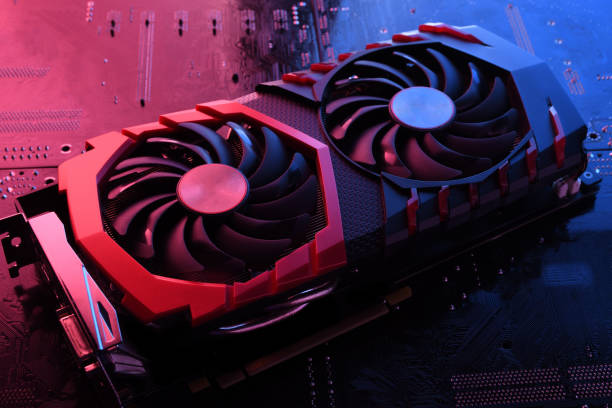
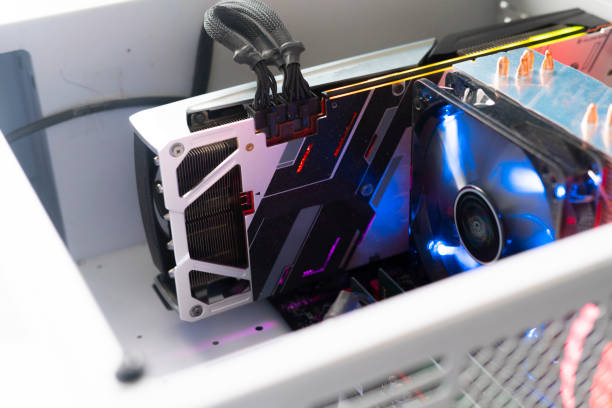
The GPU, or Graphics Processing Unit, is designed to perform large amounts of graphics-related computation. It renders objects, processes visual effects, handles shaders, and produces the images displayed on your monitor.
Both components work together whenever you play a game. The CPU prepares information that the GPU uses to render a frame, while the GPU performs the graphics workload. The exact division of work depends on the game’s engine and settings.
<text>A simple way to understand it: the CPU helps organize what happens in the game, while the GPU does much of the work required to draw the game on your screen. Neither component can compensate completely for a serious limitation in the other.</text>
| Feature | CPU | GPU |
| Full name | Central Processing Unit | Graphics Processing Unit |
| Main role | General processing and game logic | Graphics rendering and visual computation |
| Gaming tasks | AI, physics, game systems, draw-call preparation | Textures, shaders, lighting, visual effects |
| Common performance warning | Low or inconsistent frame rates in CPU-heavy scenes | Low FPS when graphics settings are demanding |
| Common upgrade benefit | Better CPU-heavy performance and potentially improved frame-time consistency | Higher rendering performance and better graphics capability |
A gaming PC needs a balanced combination of both components. A powerful graphics card may sit underused if the CPU cannot prepare frames quickly enough. Likewise, a fast processor cannot produce high frame rates if the GPU is struggling with demanding graphics settings.
When Upgrading the GPU Makes the Biggest Difference
For many gaming PCs, the GPU is a major factor in performance, particularly when playing visually demanding games at high resolutions. Modern games can use complex lighting, detailed textures, shadows, reflections, and other effects that require substantial graphics processing power.
If your graphics card is struggling, upgrading it can increase average FPS, improve performance at higher resolutions, and allow you to use more demanding visual settings. A stronger GPU may also make features such as ray tracing more practical, depending on the card and game.
GPU upgrades are especially useful when the processor is already capable enough to keep up with the graphics workload. In that situation, replacing the graphics card can improve performance without requiring a complete system rebuild.
Signs that a GPU upgrade may help include:
- FPS drops significantly when you increase resolution or graphics quality.
- GPU utilization stays near its maximum during demanding gameplay, while the CPU is not the main limiting factor.
- Lowering demanding graphics settings noticeably improves frame rates.
- You want to play at a higher resolution, such as moving from 1080p to 1440p or 4K.
- Your current card struggles with modern games, advanced visual effects, or high-resolution textures.
These signs are useful clues, not absolute proof. GPU utilization can vary from scene to scene, and some games have separate limits caused by frame caps, memory capacity, or engine behavior.
Before buying a new graphics card, check your power supply, available space inside the case, power connectors, and cooling. A larger or more power-hungry GPU may require changes beyond the card itself.
When Upgrading the CPU Makes the Biggest Difference
The CPU becomes particularly important in games that perform many calculations every frame. These include some strategy games, large simulations, competitive multiplayer games, and titles with complex AI or many active characters.
A CPU upgrade can improve how quickly the game processes its internal systems and prepares frames for the GPU. This may increase average FPS in CPU-limited situations and improve frame-time consistency, which can reduce the feeling of stuttering.
Competitive players using high-refresh-rate monitors may also benefit from a faster processor. For example, someone targeting very high frame rates at 1080p may be limited by the CPU even when using a powerful graphics card. This is because the processor must keep preparing new frames quickly enough to match the GPU’s rendering speed.
A CPU upgrade may be worth considering when:
- FPS remains limited even after you reduce graphics settings.
- Performance becomes worse in crowded areas with many characters, vehicles, or simulated objects.
- The GPU frequently has unused capacity because it is waiting for work.
- You experience poor frame-time consistency in CPU-heavy scenes.
- You play competitive games and want to sustain high frame rates with a powerful GPU.
However, a high CPU usage percentage by itself does not prove that the processor is the bottleneck. Games do not always use every CPU core equally. One or two heavily loaded threads can limit performance even when total CPU utilization appears relatively low.
Check compatibility before purchasing a new processor. Your motherboard must support the CPU, and a BIOS update may be required. You should also consider cooling, power requirements, and whether the upgrade offers enough performance to justify its cost.
How Resolution and Graphics Settings Affect CPU and GPU Performance
Your monitor’s resolution and your chosen graphics settings can change which component limits gaming performance. At 1080p, a graphics card has fewer pixels to render than it does at 1440p or 4K. If you use a powerful GPU at lower settings, the processor may become the limiting factor because it cannot prepare frames quickly enough to keep the graphics card fully occupied. At higher resolutions, the GPU usually has more work to do. This can make graphics performance the main limitation, particularly in games with detailed environments and demanding visual effects.
| Gaming setup | Component that may become the main limitation |
| 1080p with low settings and very high FPS targets | CPU |
| 1080p with demanding graphics settings | CPU or GPU, depending on the game |
| 1440p with high or ultra settings | Often GPU, depending on hardware and game |
| 4K with demanding visual effects | Usually GPU |
| Strategy game with many units or complex simulations | Often CPU |
| Competitive shooter targeting very high refresh rates | CPU or GPU, depending on the system |
These are general patterns rather than fixed rules. A poorly optimized game, a memory limitation, or an unusual engine workload can change the result. Graphics settings also affect performance differently. Increasing resolution, ray tracing, and some advanced visual effects can significantly increase GPU workload. Meanwhile, settings such as view distance, object density, and simulation complexity may place additional demands on the CPU in certain games.
If you are unsure which component needs an upgrade, test the game at different settings before spending money. If lowering resolution and graphics quality increases FPS substantially, the GPU may be limiting performance. If FPS barely changes, the CPU or another system limitation may be involved.
How to Check Whether Your CPU or GPU Is the Bottleneck
A bottleneck occurs when one component limits how quickly the rest of the system can complete a task. In gaming, the CPU and GPU can take different amounts of time to prepare and render each frame. The slower stage can restrict overall performance. You can investigate this using built-in Windows tools and a hardware monitoring application. Start by opening Task Manager with Ctrl + Shift + Esc. Select Performance and observe the CPU, GPU, memory, and disk activity while the game is running. For more useful results, test during actual gameplay rather than only in the main menu.
A monitoring tool that displays per-core CPU utilization, GPU utilization, temperatures, clock speeds, and frame times can provide more detail. Record the results in a demanding scene, then repeat the test after lowering graphics settings. Interpret the results carefully. If the GPU remains heavily utilized and reducing graphics settings improves FPS, a GPU limitation is plausible. If one or more CPU threads are heavily loaded while GPU utilization remains below its usual workload, the processor may be restricting performance.
Neither result is conclusive on its own. Frame caps, vertical synchronization, thermal throttling, insufficient RAM, background applications, and game-engine limits can produce similar symptoms. Temperature is particularly important. A CPU or GPU that becomes too hot may reduce its operating speed to control heat. In that case, improving cooling or correcting a thermal problem may deliver better results than buying new hardware. The goal is to identify the actual limitation under the conditions in which you play, not simply to replace whichever component appears older.
What About RAM, VRAM, and Storage?
Although the CPU and GPU receive most of the attention, other components can also affect gaming performance. Upgrading the processor or graphics card will not necessarily solve a problem caused by insufficient memory or slow storage.
System RAM holds the data and instructions that running applications need. If your PC does not have enough RAM for a game and its background applications, Windows may rely more heavily on storage for memory management. This can contribute to stuttering and slowdowns.
VRAM is the dedicated memory available on a graphics card. It stores graphics-related data, including textures and other resources. If a game exceeds the available VRAM capacity, performance can suffer, especially with high-resolution textures or demanding graphics settings. The precise impact depends on the game and how it manages memory.
Storage matters too. An SSD can improve loading times compared with a traditional hard drive and may help reduce delays when a game loads assets. However, moving a game to an SSD will not automatically increase average FPS if the CPU or GPU is already the main limitation.
| Component | When an upgrade may help |
| RAM | Games stutter or system memory usage remains very high |
| GPU VRAM capacity | High texture settings cause memory pressure or related performance issues |
| SSD | Loading takes too long or storage-related asset streaming causes delays |
| CPU | Game processing or frame preparation limits performance |
| GPU | Graphics rendering limits frame rates or visual settings |
Before purchasing anything, check whether your current system has a memory or storage limitation. A targeted upgrade can sometimes improve the experience more effectively than replacing an expensive CPU or GPU.
Choose the Upgrade That Fits Your Gaming Goals
The best upgrade depends on what you want from your PC. Someone playing visually demanding single-player games at 4K may benefit more from a graphics card upgrade, while a competitive player aiming for very high FPS at 1080p may gain more from a faster processor.
Your budget and existing platform also matter. A GPU upgrade may be straightforward if your motherboard, power supply, case, and CPU are suitable. A CPU upgrade could require a compatible motherboard or BIOS update, and changing platforms may increase the total cost considerably.
Think about your current gaming experience rather than focusing only on component specifications. If you are happy with visual quality but cannot maintain your desired frame rate in CPU-heavy games, a processor upgrade may be the better choice. If you want to increase resolution, enable demanding visual effects, or improve graphics quality, the GPU may deserve priority.
It is also worth comparing the cost of a complete upgrade with the expected benefit. Buying a substantially more powerful GPU for a system with a very weak CPU may not deliver the improvement you expect. Similarly, replacing a capable processor will not solve poor graphics performance when the GPU is already fully occupied.
Check independent benchmarks for the exact games you play, using hardware combinations and settings similar to your own. Average FPS, one-percent-low results, and frame-time measurements can reveal more than a single headline performance number. One-percent lows are especially useful when evaluating how consistently a system delivers frames during demanding gameplay.
Should You Upgrade the CPU or GPU First?
For most people, the right decision comes down to the component that currently limits performance. If your GPU is consistently working at or near full capacity in demanding scenes and lowering graphics settings improves FPS, prioritize the graphics card. If performance remains limited at low settings, particularly in CPU-heavy games, investigate the processor and per-core workload before making a decision.
If both components are old, compare upgrade costs carefully. You may get better overall value from a balanced upgrade rather than purchasing the most expensive graphics card available. Remember to account for RAM, power supply capacity, cooling, and motherboard compatibility when calculating the total cost.
Do not forget that an upgrade is not always necessary. Reducing a few demanding graphics settings, closing unnecessary background applications, updating stable drivers, or resolving overheating may improve performance without additional spending.
Conclusion
Choosing between a CPU and GPU upgrade for gaming depends on your hardware, the games you play, your target resolution, and the frame rate you want to achieve. A GPU upgrade often makes the biggest difference when graphics rendering is the main limitation, especially at higher resolutions and demanding visual settings. A CPU upgrade can be more valuable in processor-heavy games or when you are targeting very high frame rates.
Before buying a component, test your PC during real gameplay, check CPU and GPU utilization, monitor temperatures, and compare performance at different graphics settings. Also consider whether RAM, VRAM, storage, or power and cooling limitations are affecting the experience.
The smartest upgrade is not necessarily the most powerful or expensive one. It is the component that addresses your system’s actual weakness and delivers a meaningful improvement in the games you enjoy.