Introduction
Choosing between an SSD and an HDD can make a real difference to your PC gaming experience. Both types of storage can hold games, applications, and personal files, but they work differently and offer different levels of performance. If your games take a long time to load, updates seem slow, or open-world environments occasionally pause while assets load, upgrading your storage may be worth considering. An SSD uses flash memory to store data, while an HDD relies on spinning magnetic disks and a moving read/write mechanism. Because an SSD has no moving parts, it can access many types of data much faster than a traditional hard drive. This makes it especially useful for modern games that frequently load large amounts of data.
However, an SSD is not guaranteed to increase FPS in every game, and HDDs can still be useful for storing large game libraries on a budget. The best choice depends on the games you play, how much storage you need, and how much you want to spend. This guide compares SSD vs HDD for gaming, covering loading times, in-game performance, storage capacity, prices, and the best way to upgrade your PC.
What Is the Difference Between an SSD and an HDD?
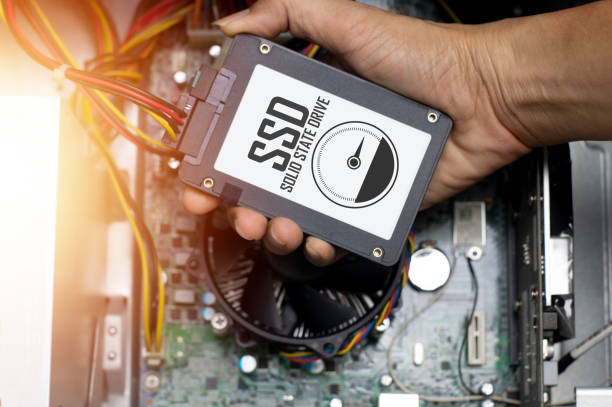
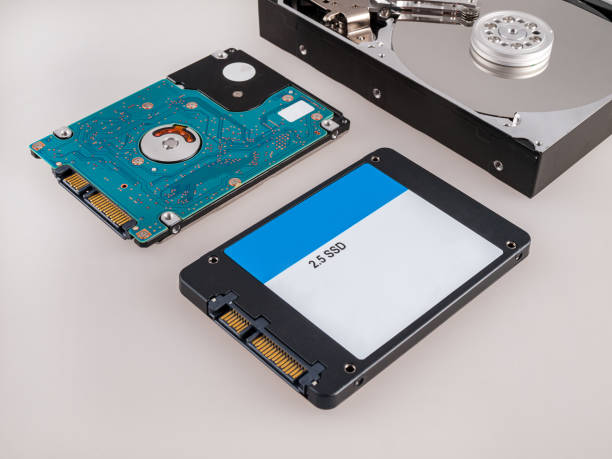
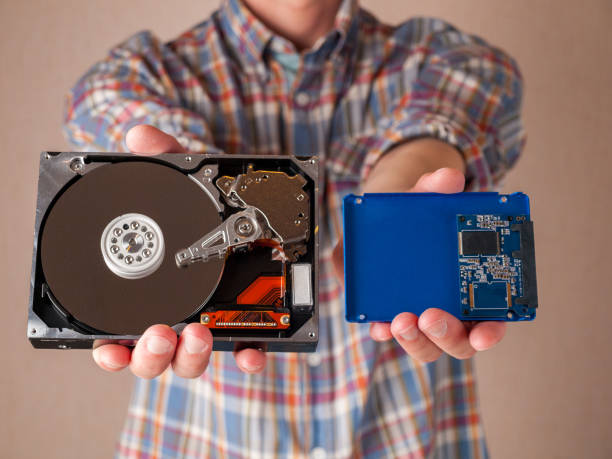
An SSD, or Solid State Drive, stores data in flash memory chips. It has no spinning disks or moving read/write heads, allowing it to access data quickly and handle many small file operations efficiently. An HDD, or Hard Disk Drive, stores data on rotating magnetic platters. A mechanical read/write head moves across the platters to access information. Because this process involves physical movement, an HDD generally takes longer to access scattered files than an SSD.
Both devices can store Windows, games, applications, and other files. The main differences involve speed, capacity, cost, durability, and how each device handles data.
| Feature | SSD | HDD |
| Storage technology | Flash memory | Magnetic disks |
| File access | Very fast, with low access latency | Slower due to mechanical movement |
| Game loading | Generally faster | Generally slower |
| Capacity for the money | Usually more expensive per gigabyte | Usually cheaper per gigabyte |
| Noise | Silent during normal operation | May produce spinning or mechanical noise |
| Physical design | No moving mechanical parts | Contains moving mechanical parts |
| Best use | Windows, frequently played games, demanding modern titles | Large game libraries, media, and bulk storage |
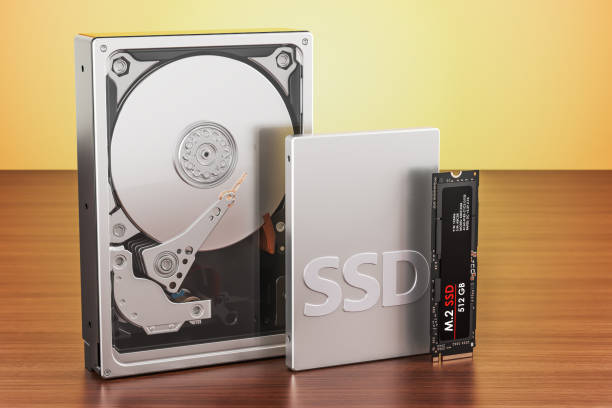
Not all SSDs offer the same performance. SATA SSDs use the SATA interface, while NVMe SSDs typically connect through PCIe and use the NVMe protocol. NVMe drives can offer much higher sequential transfer speeds, but the difference you notice in a particular game depends on how that game uses storage. Likewise, HDD performance varies with drive speed, model, capacity, and condition. Nevertheless, an SSD generally offers a substantial advantage in random data access, which is one reason it performs well when loading complex games.
How Much Faster Are SSDs for Game Loading?
One of the most noticeable benefits of an SSD is shorter loading time. Games often need to read many files when launching, loading a saved game, entering a new area, or connecting to certain multiplayer sessions. Because SSDs can access data quickly, they often reduce the time spent waiting for these files to load. The improvement varies by game, storage device, and PC configuration, so there is no single percentage that applies to every system. For example, moving a game from an older HDD to a SATA SSD may noticeably reduce loading delays. Moving the same game from a SATA SSD to a high-end NVMe SSD may produce a smaller improvement if the game is not designed to take advantage of faster storage.
| Storage type | Typical gaming benefit |
| Older mechanical HDD | Lower purchase cost and useful for bulk storage, but longer loading times |
| SATA SSD | Faster game launches and level loading than a typical HDD |
| NVMe PCIe SSD | Very high transfer speeds and potentially faster loading in storage-sensitive games |
These comparisons are general rather than guaranteed benchmarks. Actual loading times depend on the game engine, CPU, available RAM, compression and decompression work, and other system components.
Some games load large amounts of data when you first launch them but do relatively little storage work during gameplay. In those cases, an SSD may mainly improve loading screens. Other games continuously stream assets as you move through the world, so faster storage can help reduce delays when new content is needed. An SSD can also make Windows and everyday applications feel more responsive. That is an additional benefit if your gaming PC still uses an HDD as its main system drive.
Does an SSD Increase FPS in Games?
An SSD does not directly perform the graphics calculations that determine FPS. Those tasks primarily depend on the GPU, CPU, and the game’s workload. Therefore, replacing an HDD with an SSD will not automatically increase average frame rates. However, storage can affect performance in games that frequently load assets while you play. If a game struggles to retrieve textures, models, or other resources quickly enough, a slow drive may contribute to pauses, delayed texture loading, or inconsistent frame times.
In these situations, installing the game on an SSD may make gameplay feel smoother. The result depends on whether storage was actually causing the problem.
An SSD is most likely to help when:
- The game takes a long time to load levels or saved games.
- Textures or environmental objects appear late while moving through the world.
- The game frequently accesses storage during gameplay.
- Windows and the game are both running from an older, heavily used HDD.
- A game’s published requirements recommend or require SSD storage.
An SSD is less likely to improve average FPS when the GPU is already the main limitation. If a game runs at low frame rates because the graphics card cannot render demanding scenes quickly enough, faster storage will not solve that problem. The same applies to CPU bottlenecks, overheating, and insufficient VRAM. Those issues require different solutions.
Before upgrading, identify the symptoms you are experiencing. If your main complaint is long loading screens, an SSD is a strong candidate. If your goal is to increase FPS, check GPU and CPU performance first.
Why Modern PC Games Benefit From SSD Storage
Modern games can contain enormous environments, detailed textures, complex character models, audio files, and other assets. Some titles need to load new resources while the player explores the game world rather than loading everything at the beginning. This process is often called asset streaming. The game retrieves data from storage as it becomes necessary, allowing developers to build detailed environments without keeping every asset in active memory at all times. An HDD can handle this work, but its mechanical access time can make it less suitable for workloads involving frequent requests for scattered files. An SSD can retrieve this data more quickly, which may help the game load assets with fewer interruptions.
Certain newer games also list SSD storage in their system requirements. In those cases, installing the game on an HDD may lead to longer loading times or an experience that differs from the developer’s intended configuration. For PC gamers, this means storage requirements should be checked before installing a new release. A game that technically fits on an HDD may still benefit from being installed on an SSD.
There are also differences between SSD technologies. NVMe SSDs can deliver very high bandwidth, but not every game makes full use of it. The benefits of advanced storage technologies depend on the game engine, operating system, and how the game is designed to retrieve and process data. For most players, the practical priority is to use an SSD rather than choosing between SATA and NVMe solely based on headline speed numbers.
SSD vs HDD for Game Installation and Updates
Game installation and update times depend on more than storage speed. Your internet connection, the gaming platform’s servers, the size of the download, and the amount of data the launcher must unpack or verify can all affect the process. An SSD can help when the launcher needs to write many small files, unpack downloaded data, or verify an installation. It may also make updates feel more responsive when the storage drive is the limiting factor.
However, an SSD cannot make an internet download faster than the available network connection and server performance allow. If a game downloads slowly because your connection is unstable, changing the storage device will not resolve the underlying network issue. HDDs can also take longer when a launcher must perform many file operations or rewrite large amounts of game data. This can be particularly noticeable with certain update methods that reorganize or patch existing files.
When choosing where to install games, consider these practical points:
- Install frequently played or storage-sensitive games on an SSD.
- Keep games with SSD requirements on a suitable SSD.
- Use an HDD for older games that load comfortably and do not require SSD storage.
- Leave sufficient free space on the installation drive for updates and temporary files.
- Check whether your launcher supports moving an existing installation before downloading a game again.
If you already have an SSD with limited capacity, you do not need to move every game to it. Prioritize titles where loading times or asset streaming make the biggest difference, then store less demanding games elsewhere.
How Much Storage Space Do Gamers Need?
Game sizes vary widely. Some smaller indie games require only a few gigabytes, while modern AAA titles can require well over 100GB, especially when optional high-resolution textures or additional content are installed. Your storage needs also include Windows, applications, updates, screenshots, recordings, and other files. A drive that looks large on paper can fill up quickly if you keep many modern games installed simultaneously.
For many gaming PCs, a 1TB SSD is a practical starting point if the budget allows it. A 500GB SSD can work for a smaller collection, but you may need to manage installed games more frequently. Players who maintain a large library may prefer a larger SSD or a combination of SSD and HDD storage.
| Storage setup | Suitable for |
| 500GB SSD | Budget systems and a small selection of installed games |
| 1TB SSD | A balanced starting point for Windows and several large games |
| 2TB SSD | Larger game libraries and fewer installation changes |
| SSD plus large HDD | Fast storage for active games and affordable space for less frequently played titles |
These are general planning suggestions rather than fixed requirements. The right capacity depends on the size of your library and how often you uninstall games. Remember that a drive’s advertised capacity and the space available in Windows will differ because of how storage capacity is measured and how the drive is formatted. You should also avoid filling an SSD completely. Keeping reasonable free space makes it easier to install updates and manage temporary data. If you regularly record gameplay, store video files, or download many large games, consider those files when calculating your total capacity needs.
SATA SSD vs NVMe SSD: Which Is Better for Gaming?
If you decide to buy an SSD, you may encounter two common types: SATA SSDs and NVMe SSDs. A SATA SSD uses the SATA interface, which was originally designed for storage devices such as hard drives. It is significantly faster than a typical HDD in many practical workloads, particularly when accessing small files. An NVMe SSD generally connects through a PCIe interface and uses the NVMe protocol. It can offer much higher sequential read and write speeds, making it useful for large data transfers and workloads designed to take advantage of faster storage.
For gaming, both types can provide a good experience. If you are upgrading from an HDD, even a SATA SSD can be a major improvement. An NVMe SSD may offer additional benefits, but the difference in game loading times is not always as large as the difference suggested by advertised transfer speeds.
Before buying an NVMe drive, check whether your motherboard has a compatible M.2 slot and supports the drive’s interface. M.2 describes a physical form factor, while SATA and NVMe describe different storage interfaces or protocols. Not every M.2 slot supports every type of drive.
You should also consider the price per gigabyte, capacity, warranty, and the manufacturer’s specifications. A larger SSD with good performance may be a better gaming purchase than a very fast but much smaller drive. For most gamers, the sensible order is to replace an HDD used for Windows or modern games first, then consider a faster NVMe drive if it suits the budget and the system.
How to Upgrade From an HDD to an SSD
Upgrading from an HDD to an SSD is one of the more practical storage improvements for an older gaming PC. You can install Windows and frequently played games on the SSD while retaining the HDD for bulk storage, provided your system has room and compatible connections.
Before purchasing a drive, check your PC’s available storage connections, physical space, and motherboard specifications. Desktop PCs often support SATA drives, while many modern systems also offer M.2 slots. Laptop upgrade options depend on the exact model.
You have two common options for setting up the new drive. You can install Windows and your applications from scratch, or clone the existing system drive using suitable disk-cloning software. A clean installation can remove accumulated software problems, while cloning may be more convenient if you want to preserve your current setup.
Before making changes, back up important files, including personal documents, game saves, and configuration files that may not be synchronized through cloud services. Confirm that your Windows activation and account information are available if you plan to reinstall the operating system.
Once the SSD is installed and recognized, follow the appropriate setup process. If it will be your primary drive, install or migrate Windows to it and configure the system to boot from the correct device. Then install your most frequently played games.
If you want to move a game without downloading it again, check the launcher’s official instructions for moving an existing library or locating installed files. Avoid manually deleting the original installation until you have confirmed that the game launches successfully from its new location.
After the upgrade, test several games and compare loading times. The most noticeable improvement may come from faster Windows startup, quicker game launches, and shorter waits between levels rather than a dramatic increase in average FPS.
Is an SSD Worth It for Gaming?
For most PC gamers who still use an HDD for Windows and modern games, an SSD is a worthwhile upgrade. It can reduce loading times, improve system responsiveness, and help games that rely on frequent asset streaming. It also provides a quieter storage experience because it has no moving mechanical parts.
However, the best upgrade depends on what you want to improve. If your main goal is faster loading, an SSD is often a strong choice. If your main goal is higher average FPS, a GPU or CPU upgrade may deliver a greater benefit when those components are limiting performance.
Your budget matters as well. An SSD usually costs more per gigabyte than an HDD, so a large game collection can become expensive to store entirely on solid-state storage. A mixed setup can provide a useful balance: SSD storage for Windows and active games, with an HDD for older titles and files that do not need fast access.
Before purchasing a drive, compare its capacity, interface, warranty, price, and compatibility with your PC. Do not pay a premium for headline transfer speeds unless your system and workload can make use of them.
Conclusion
The choice between an SSD and an HDD for gaming comes down to performance, capacity, and cost. SSDs generally provide faster loading, quicker file access, and a more responsive Windows experience. HDDs remain useful when you need large amounts of storage at a lower price.
For most modern gaming PCs, installing Windows and frequently played games on an SSD is a sensible choice. A SATA SSD can already provide a substantial improvement over an HDD, while an NVMe SSD may offer additional speed depending on the game and system.
Remember that storage speed does not automatically increase FPS. If a game is limited by your graphics card or processor, an SSD will not remove that bottleneck. Choose the upgrade that addresses your actual problem, and consider combining SSD and HDD storage if you want both speed and capacity.